Open Directory to Search for File Panel
The purpose of this Open pop-up window is for user to select the file to be viewed or uploaded.
At this function, user will come across various fields or columns that needs to be maintained with relevant data.
The descriptions of the respective field or column, are as follows:-
| Open (Pop-Up Window) | |
|---|---|
|
This is the icon to be clicked once in order to move backward to the previous directory. |
|
This is the icon to be clicked once in order to move forward to the next directory. |
|
This is the icon to be clicked once in order to move up to a particular main directory. |
|
This is the field that display the presently selected directory or file path. Note:
|
|
This is the field to be inputted with the relevant keywords in order to search for the related file of the selected directory or file path. |
|
This is the button to be clicked once in order to organise the contents of the selected folder by selecting the relevant organising action, as follows:-
|
|
This is the button to be clicked in order to create a new folder at the selected directory of file path. |
|
This is the icon that indicates the presently selected viewing pattern of the items available in the selected directory or file path. Note:
Click once on the |
|
This is the icon to be clicked in order to hide the preview pane of a selected file or make the preview pane appeared to display the overview of a selected file. |
|
This is the icon to be clicked once in order to be directed to the Window Help & Learning webpage to search for related subject matter. |
|
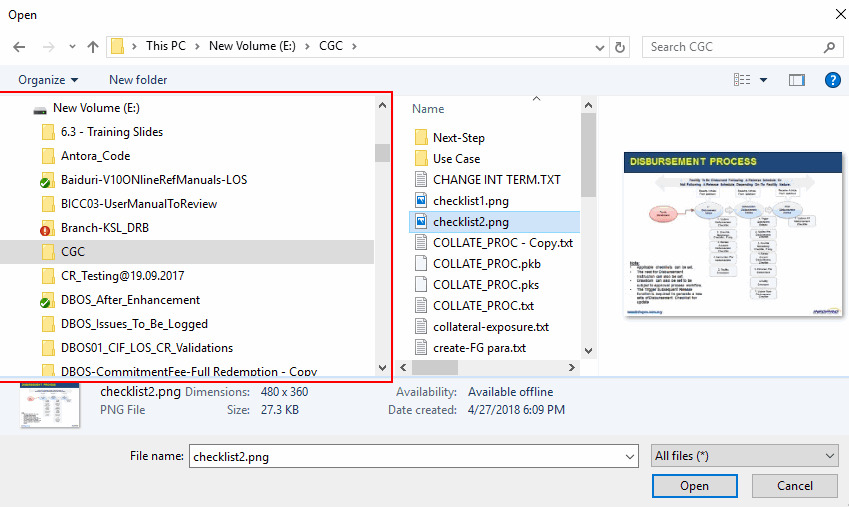
This is the area at the Open pop-up window that user can either view the selected main directory or folder or file path. However, user can also reselect the main directory or folder or file path from this area. |
|
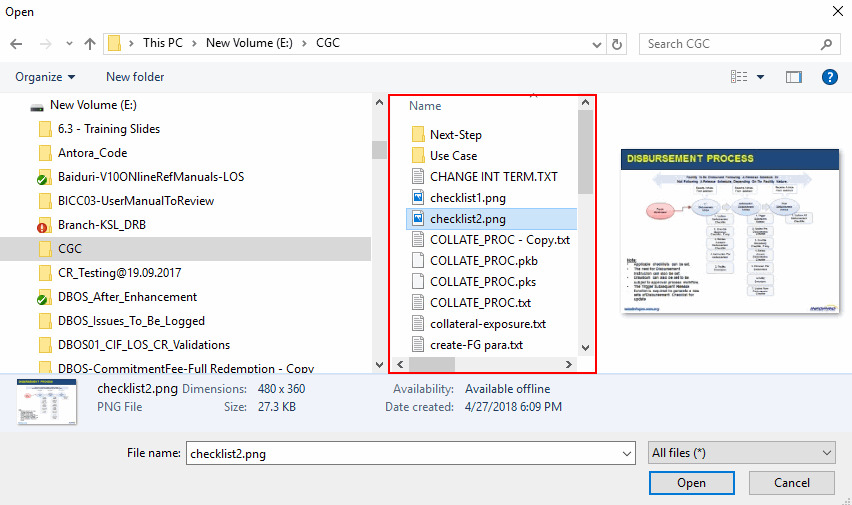
This is the area at the Open pop-up window that user can either view the selected sub directory or folder or file path. However, user can also reselect the sub directory or folder or file path from this area. |
|
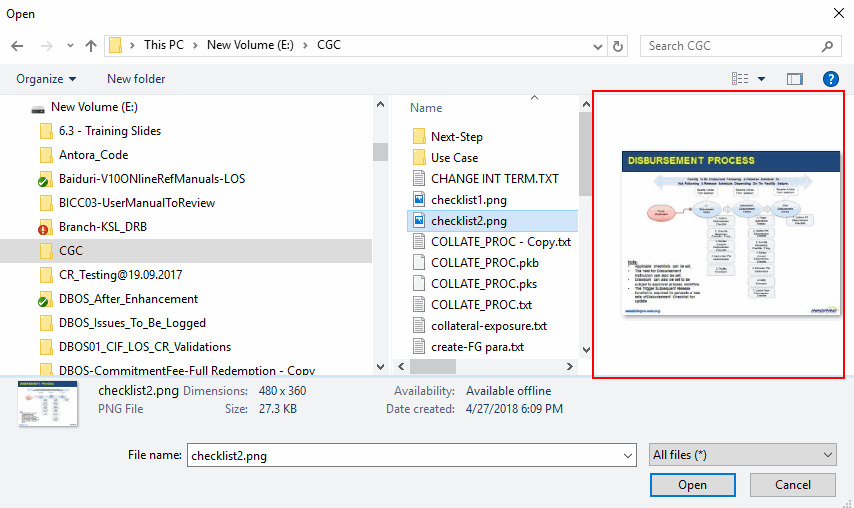
This is the area at the Open pop-up window that user can preview the brief outline of the selected document. |
|
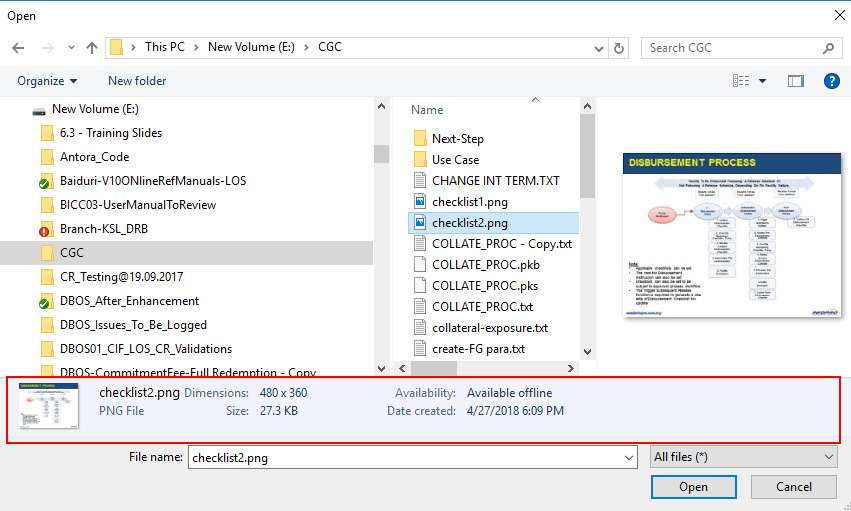
This section that displays the brief details of the selected directory or sub-directory or document. |
|
This is field that displays the file name of the selected document. |
|
This field indicates the possible types of files that can be displayed at the selected main directory and sub directory, such as follows:-
|
|
This is the button to be clicked once in order to select the file to be uploaded and display at the Customer File Upload Detail panel |